
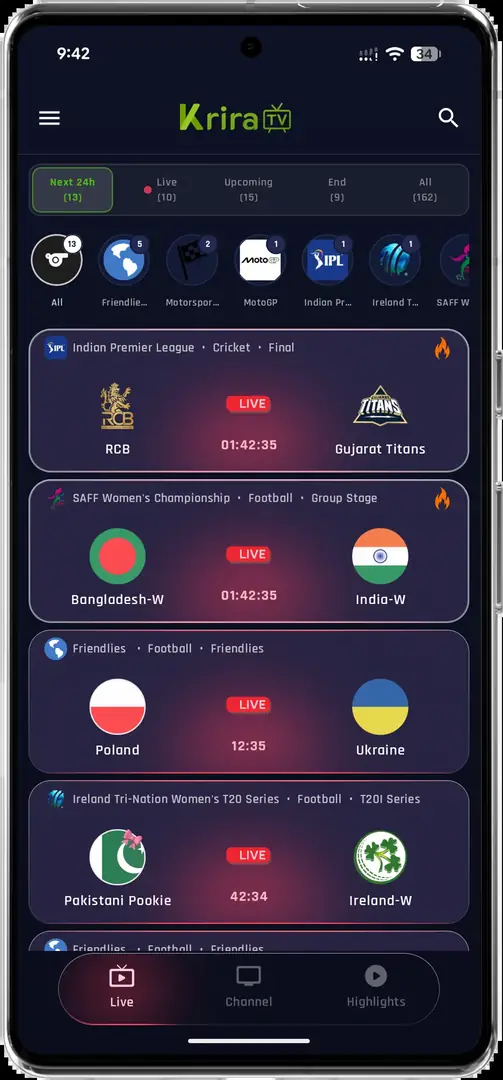
Before updating Krira TV
Open Android Settings, find Krira TV under Apps and note the installed version if Android exposes it. Compare that number with the source-listed current release. Search snippets can remain stale long after a page changes, which is why version 5.0.4 still appears in queries even though the linked source page now lists v6.2.6.
Make sure the device has free storage, a stable connection and a recent backup of anything you cannot replace. Streaming apps often keep little local data, but favorites, notification choices or sign-in state may still be removed by an uninstall or Clear storage action.
- Record the installed version.
- Confirm the new release source and check date.
- Keep Android security features enabled.
- Back up important local information.
- Do not remove the old app before trying an in-place update.
Update Krira TV APK without uninstalling
Android treats an APK with the same package identity and signing certificate as an update candidate. That is the preferred path because it normally preserves local app data.
- Get the current releaseUse the homepage to open the v6.2.6 source-linked APK.
- Verify the downloadCompare the file name, byte size and SHA-256 with the published record.
- Open the APKTap the completed browser download or open it from the Downloads folder.
- Choose UpdateReview Android's prompt and select Update rather than uninstalling the existing app.
- Launch and testOpen the app, check navigation and confirm that expected settings remain.
- Remove install permissionDisable temporary install permission for the browser or file manager when finished.
Why a Krira TV update may fail
The most important failure is a signing-certificate mismatch. Android will not install one publisher signature over a build signed by another key, even when the app name looks identical. This commonly happens when older APKs came from a different archive or repackaging source.
A damaged or incomplete download can trigger a parse error. An Android version below the release requirement, insufficient storage, unsupported CPU architecture or a managed-device policy can also block installation. Compare the hash before changing security settings; a mismatched file should be deleted, not forced through the installer.
| Message | Likely cause | Action |
|---|---|---|
| App not installed | Signature conflict or damaged APK | Verify source and hash; do not force installation |
| Problem parsing package | Incomplete file or incompatible Android | Download again and confirm Android 6.0+ |
| Update not offered | Different package identity | Check whether the installed build came from another source |
| Not enough space | Android needs working space | Free several times the APK size |
| Install blocked | Device policy or temporary source permission | Review the specific Android warning |
When to uninstall and reinstall
Use uninstall-and-reinstall only after you have confirmed the source, accepted potential data loss and exhausted ordinary update fixes. Removing the app can clear local settings and does not solve a remote streaming-server outage.
If you proceed, take screenshots of settings you want to restore, uninstall the old app, restart Android, verify the new APK again and install it as a fresh application. If Android still blocks the clean install, stop and investigate device compatibility or file integrity instead of disabling additional security controls.
Installing an older APK can reintroduce bugs and may fail because app data was created by a newer version.
Checks after the update
After updating, verify that the app opens, the interface resembles the current screenshots and only expected permissions are enabled. Test one ordinary navigation path before attempting full-screen playback. If performance is worse, restart the device, clear temporary cache rather than storage and compare network behavior with another application.
Keep the old download only if you have a clear rollback reason and can identify its version and hash. Otherwise delete obsolete APK files so you do not reinstall the wrong build later. Bookmark the version page instead of relying on a filename such as app-release.apk, which does not contain the version number.
How to update Krira TV APK in common device scenarios
How to update Krira TV APK depends on where the existing build came from and how Android is managed. On a personal phone with the same signing line, the ordinary in-place method should display an Update button. On an Android TV device, you may need to transfer the file again through a trusted file manager. Inside a PC emulator, import the new APK into the same virtual device instead of creating a second Android instance.
For a family device, confirm which profile installed the old app and whether parental or device-owner controls block unknown-source installs. For a work-managed phone, do not attempt to override administrator policy. The correct answer to how to update Krira TV APK on a managed device may be that the update is not permitted. Use a personal compatible device instead of weakening organizational controls.
When storage is tight, Android needs more free space than the 11.11 MB download because it must unpack, verify and replace application files. Clear disposable downloads and cache, not app data, then retry. If the new installer presents Install rather than Update while the old app is still present, stop and verify the package source; that difference can indicate a separate package identity.
| Device scenario | Preferred update path | Do not do |
|---|---|---|
| Personal Android phone | Open the verified APK and choose Update | Uninstall before testing the in-place update |
| Android TV or TV box | Transfer the verified file and update the existing app | Use an unknown wireless APK sender |
| Windows emulator | Import into the same virtual Android device | Create multiple untracked app copies |
| Managed phone | Follow administrator policy | Bypass device management |
| Low-storage device | Free cache and completed downloads | Clear app data without a backup |
If someone asks how to update Krira TV APK to the latest version, start with source, hash, package identity and signing continuity. Uninstalling is a last resort, not the first step.
Krira TV update FAQ
What is the current Krira TV version?
The linked release page listed v6.2.6 on July 30, 2026.
Will updating delete my settings?
An in-place update normally preserves local data when the package and signing certificate match. Uninstalling first can delete it.
Why does Android say the app is not installed?
A signature mismatch, corrupt download, insufficient storage or incompatible Android version are common causes.
Can I update from v5.0.4 directly to v6.2.6?
Possibly, if both files share the same package identity and signing certificate. Android will block the update if they do not.
Should I disable Play Protect to update?
No. Investigate the warning and verify the source rather than disabling a security control.